Object Detection using OpenCV
The application demonstrates real-time object detection using a USB camera and is implemented in both C++ and Python.
Prerequisites
Synaptics Astra SL1680 evaluation kit with either OOBE or Non-OOBE image installed
USB camera connected to the board
HDMI display (for viewing results)
For Python implementation (Internet connectivity for initial setup)
Non-OOBE Implementation
The Non-OOBE image includes only the C++ implementation of the object detection application.
Using C++ Implementation
Install a pre-built image and connect to the board as described here
Connect the USB camera to the board
Set the Wayland display environment variable:
$ export WAYLAND_DISPLAY=wayland-1
Run the OpenCV object detection application:
$ opencv-gst-od
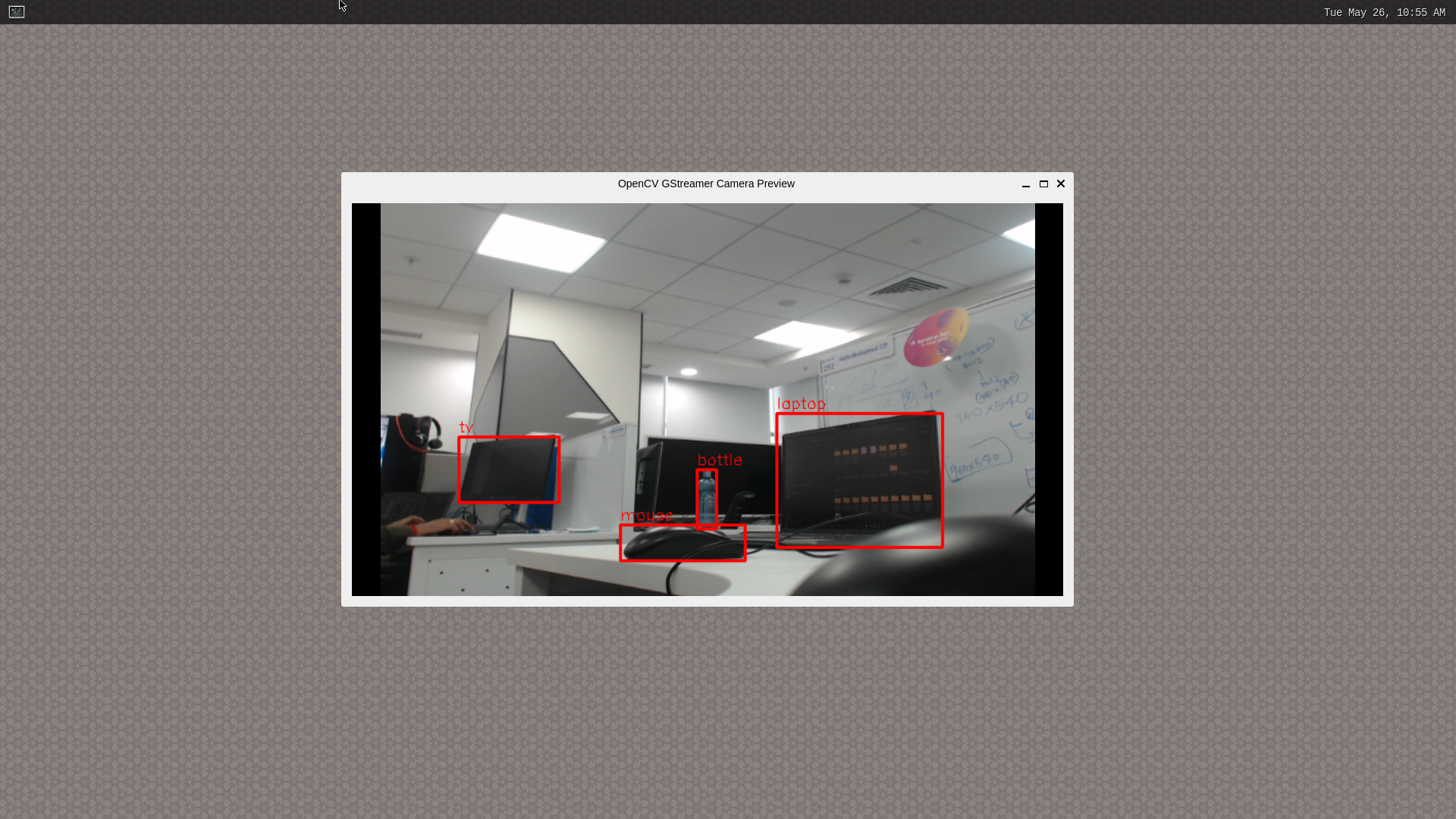
OpenCV Object Detection Application Running (C++) in Non-OOBE Image
The application will display the live camera feed with detected objects highlighted on the connected display.
OOBE Implementation
The OOBE image includes both C++ and Python implementations of the object detection application.
Using C++ Implementation
Install a pre-built image and connect to the board as described here
Connect the USB camera to the board
Set the Wayland display environment variable:
$ export WAYLAND_DISPLAY=wayland-1
Run the OpenCV object detection application:
$ opencv-gst-od
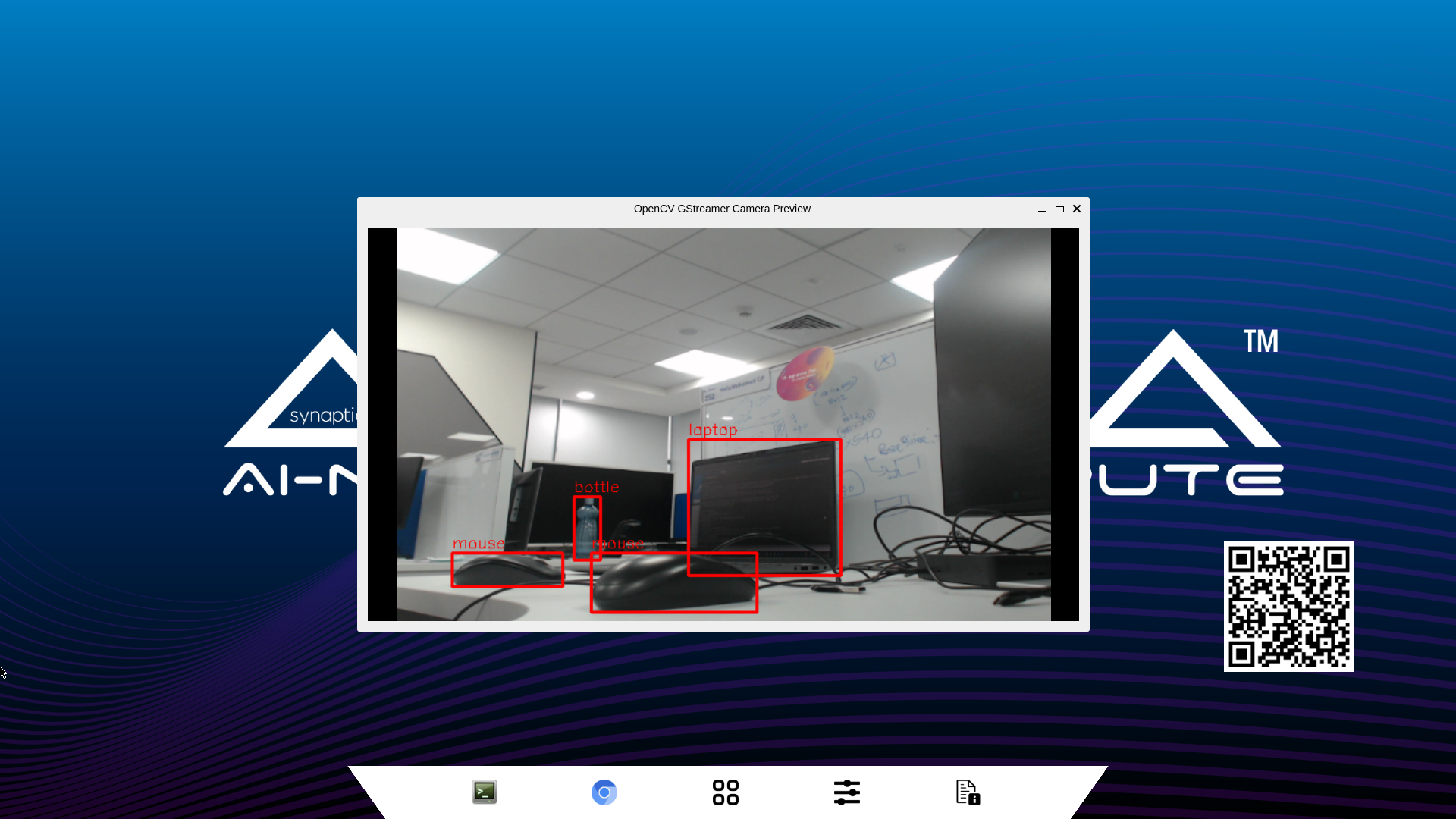
OpenCV Object Detection Application Running (C++) in OOBE Image
Using Python Implementation
The Python implementation provides an alternative way to run object detection. This implementation requires internet connectivity for initial setup.
Install a pre-built image and connect to the board as described here
Connect the USB camera to the board
Ensure the board has internet connectivity
Navigate to the demos directory:
$ cd /home/root/demos/scripts/
Create and activate a Python virtual environment with system packages:
$ python3 -m venv .venv --system-site-packages
$ source .venv/bin/activate
Install the Synaptics Python package:
$ pip3 install synap-python
Run the Python object detection application:
$ python3 sl1680_od_cam.py
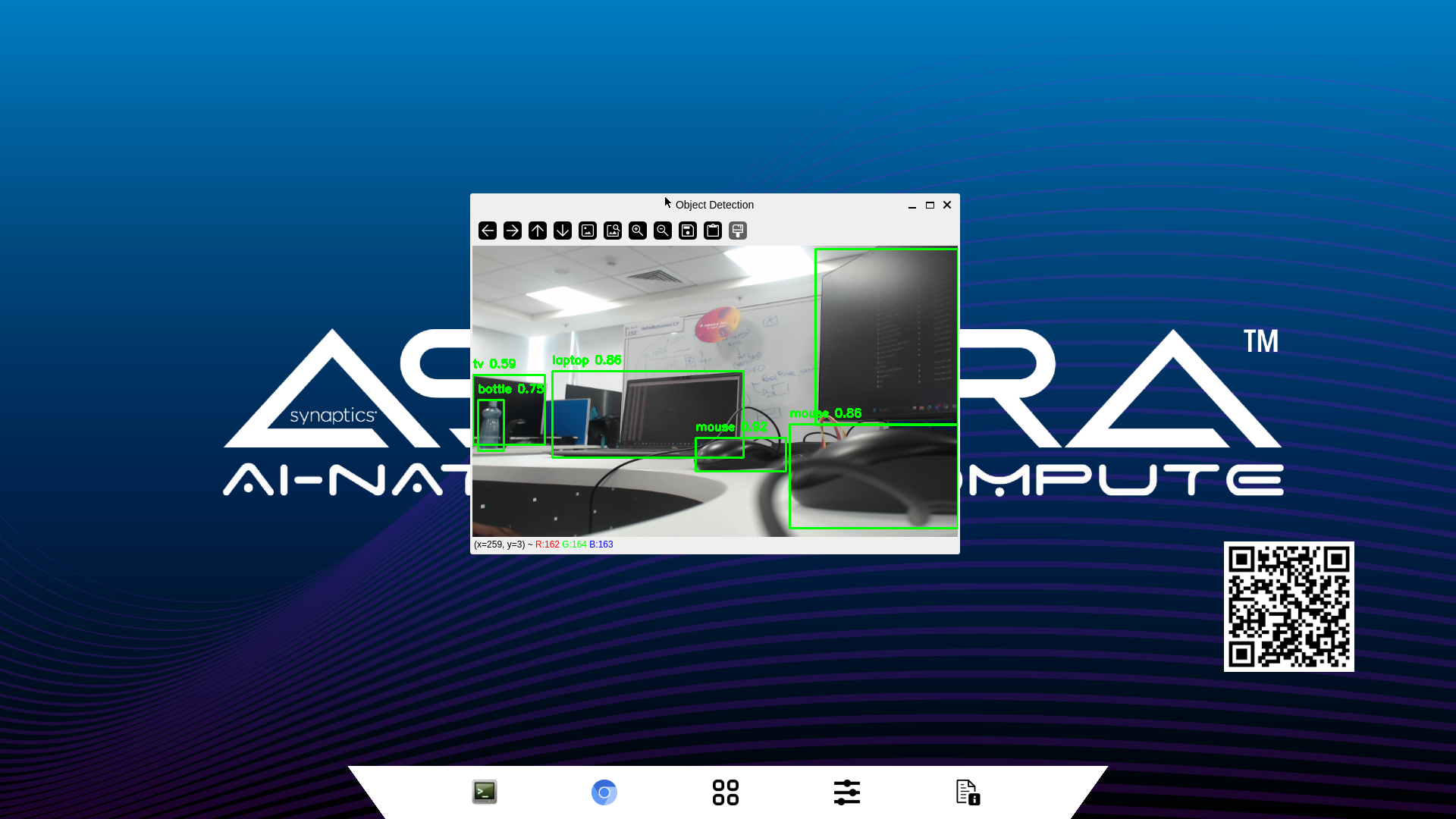
OpenCV Object Detection Application Running (Python) in OOBE Image
Note
The Python implementation requires internet connectivity during the initial setup to download the synap-python package
and any required dependencies. After setup, the application can run offline.
Note
Make sure to activate the virtual environment (step 5) before running the Python application each time you want to use it.
Troubleshooting
Camera Not Detected
If the USB camera is not detected, ensure it is properly connected and recognized by the system:
Get list of video devices to verify the camera is detected::
$ v4l2-ctl --list-devices
No Display Output
If the video is not displaying, verify the Wayland display variable is set correctly:
$ echo $WAYLAND_DISPLAY
It should output wayland-1. If it’s empty, set it again using:
$ export WAYLAND_DISPLAY=wayland-1
Python Module Not Found
If you encounter module import errors when running the Python implementation, ensure the virtual environment is activated:
$ source /home/root/demos/scripts/.venv/bin/activate
Then verify that synap-python is installed:
$ pip3 list | grep synap-python